Summary: Learn how to quickly upload images, videos, and GIFs, manage your camera roll permissions, and interact with sent messages within your church app's group chat.
Before You Begin
- You must have the church app installed on your device.
- You need to be a member of a group that has chat access enabled.
- You may need to grant the app permission to access your device's camera and photo library.
Step-by-Step Instructions
- Navigate to the Your Group section of the app and open your desired group chat.
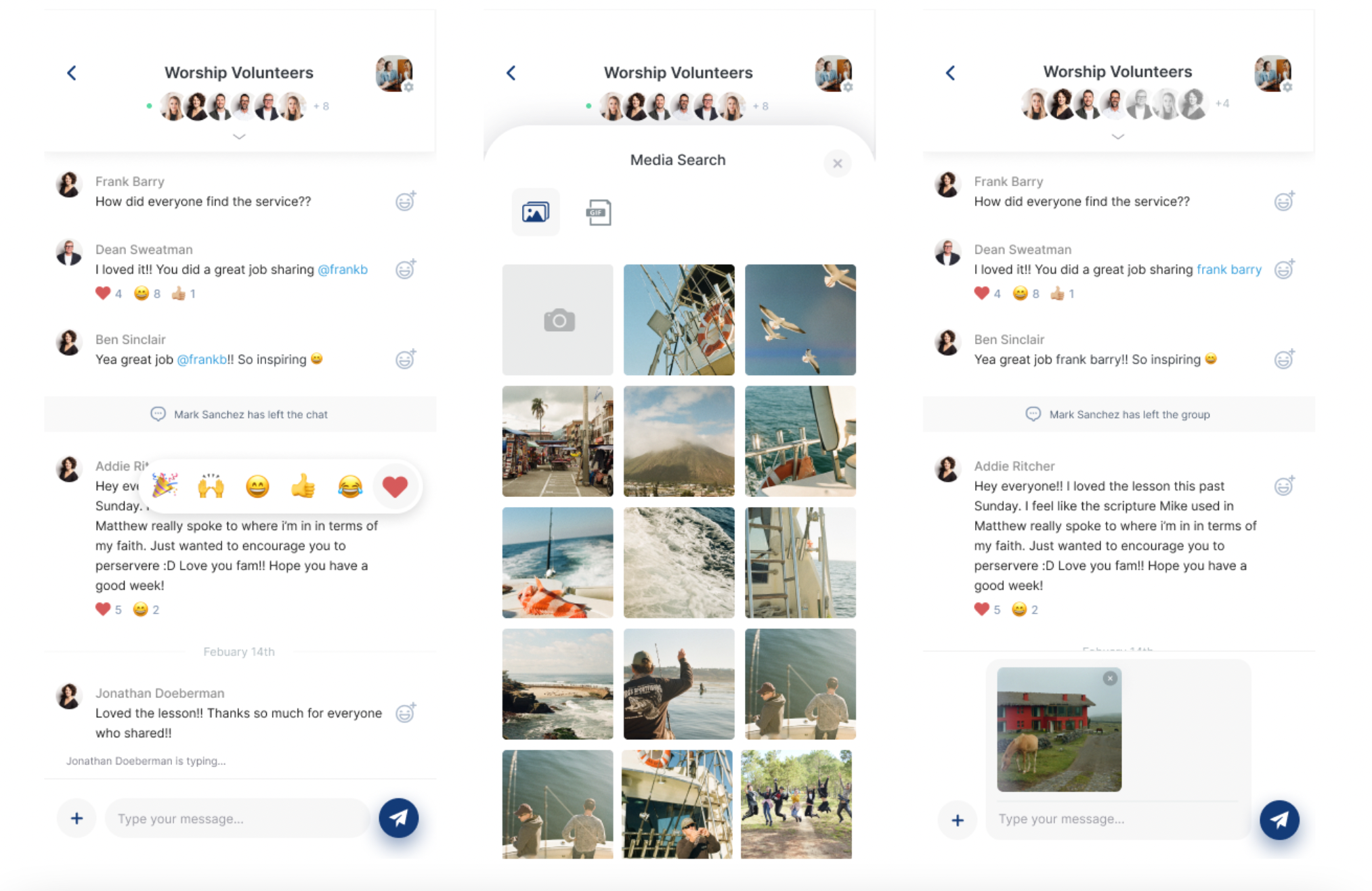
- Tap the Plus Icon (+) next to the message field to open the media menu.
- Select your preferred Media Option from the menu. You can choose to:
- Upload an Image/Video: Choose an existing file from your camera roll.
- Take a Picture or Video: Capture a new photo or video in the moment. (You can select Use Photo/Video or Retake).
- Upload a GIF: Browse and select a GIF to share.
- Tap Send to upload your selected media into the group chat.
- Press and hold any sent Media Message to reveal interaction options. From here, you can Copy, Delete, or Add an Emoji Reaction to the message.
Troubleshooting & FAQs
- Why can I only see a few of my photos when trying to upload an image? If you have your device set to "Limited Access," only specific photos will appear. To fix this, tap Allow All Photos (or Update This) to be redirected to your device settings, where you can change the permission to "Full Access." Alternatively, tap Add More to select additional specific pictures from your camera roll to make them available in the app.
- How do I unsend a photo or video I just posted?Press and hold down on the media message you want to remove, then select Delete. The image or video will be completely removed from the chat.
- Can I preview a video before sending it?Yes. If you record a new video, you have the option to fast-forward through it at the top of the screen to review it before tapping Use Video.